
Chat
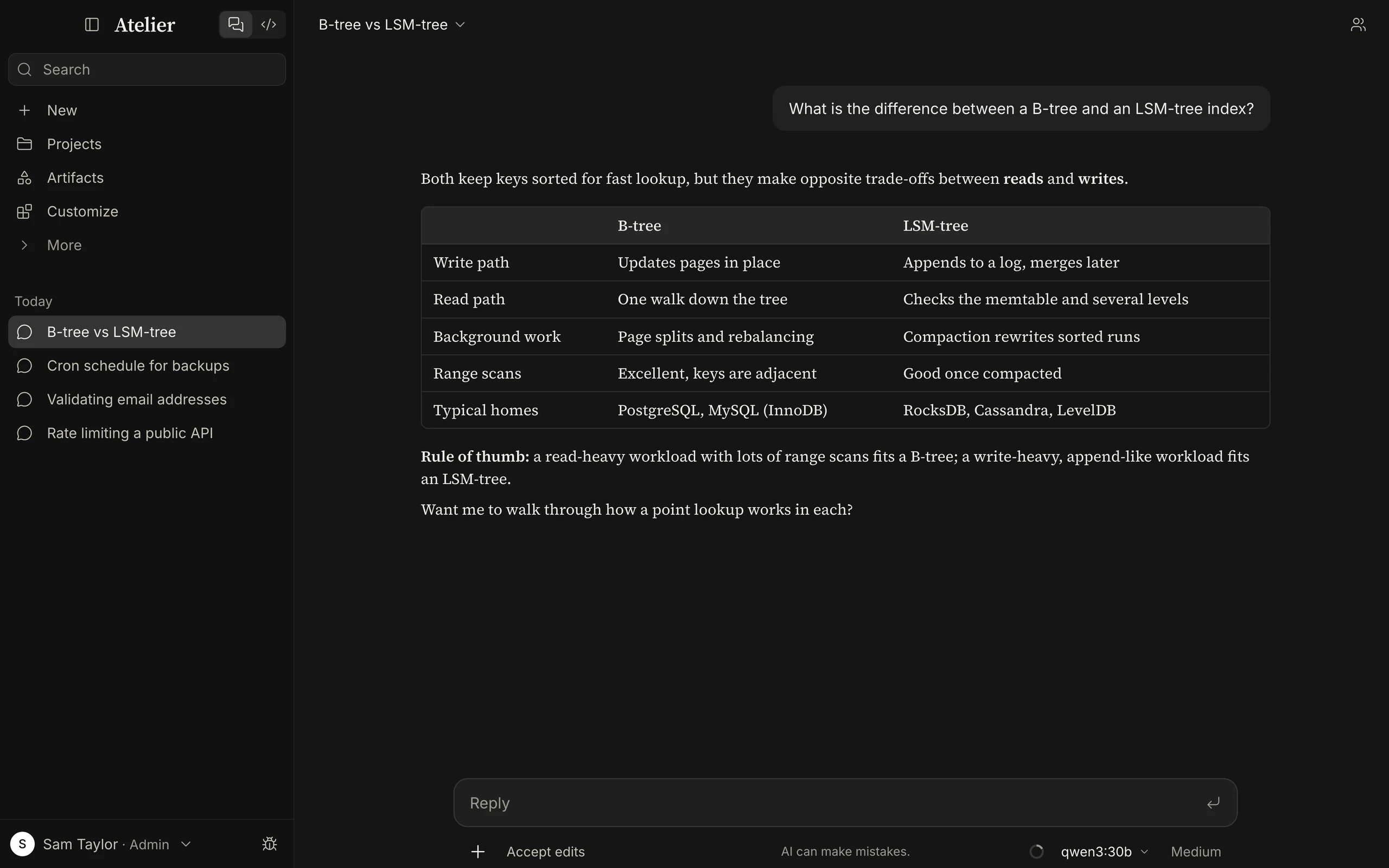
Chat is for conversations and the work that comes out of them: questions, writing, thinking something through, looking at a file or a web page, building a small page or diagram, and longer pieces of work that end in files, such as sorting a folder, reading a stack of PDFs and writing up what is in them, or building a spreadsheet. A quick question gets a quick answer. When a request needs files, commands or your computer, the same chat works through it as a task, in its own sandbox or in a folder you give it. Use Code for a codebase. Chat and Code share the same message box, model picker and effort control.
The sidebar
Section titled “The sidebar”Chat’s sidebar, top to bottom:
- The header. A button that hides the sidebar (⌘B or Ctrl+B), the Atelier name, and the Chat and Code tabs.
- Search opens the search palette (⌘K or Ctrl+K).
- New, Projects, Artifacts and Customize open those pages. More unfolds to Settings, Usage and Keyboard shortcuts.
- Pinned lists the projects and conversations you pinned, the most recently pinned first.
- Below that, your chats, newest activity first, under Today, Yesterday, a date for each earlier day of the past week, Previous 30 days and Older. Tasks you started in Cowork, before it became part of Chat, are listed with them and open as chats; they keep their folder and carry on with Chat’s default model. The sidebar loads at most 200 chats and 200 of those former Cowork tasks; search still finds older ones.
- At the bottom: update and version notices (see Updates), then your profile menu with Settings, the theme and Log out, or Lock Atelier when Atelier runs on this computer.
Each row shows its title, a document icon when it made something (Made an artifact, or Made files on a former Cowork task) and a dot while it runs. Hover a row, or right-click it, for its menu: Pin, Rename, Add to project ›, Remove from project and Delete. A former Cowork task keeps the longer menu described in Sessions. On a phone-sized window the sidebar slides in over the page.
A chat is titled from your first message by the small model (the chat’s own model when none is set). If neither answers, or with ChatGPT Chat, the title is the first words of your message.
Links to the old Cowork page still work: /work leads to the chat home and /work/<id> to that conversation.
Starting a chat
Section titled “Starting a chat”New opens the chat home with a message box. Until you have five chats, example ideas sit under the box (Write, Learn, Code, Life stuff, Surprise me); picking a prompt puts it in the box for you to edit.
Below the box, a Project menu offers No project, one of your projects, or New project…, and the model picker and effort control sit on the right. The ghost button at the top right starts a temporary chat.
The first message creates the chat. To start it in one of your folders, pick the folder with + › Add folder first: the footer then reads In and the folder’s name in place of the project menu, and its × (Remove folder) takes the folder off again. See Working in a folder.
The conversation header
Section titled “The conversation header”The title at the top of a chat opens a menu: Pin (or Unpin), Rename, Delete, and on a server account Remote control: On or Remote control: Off, which decides whether other devices signed in to your account can see and drive this conversation (see Remote control). If remote control is off for the whole account the item reads Remote control disabled in account.
A chat that works in one of your folders also shows the folder badge beside the title (see Working in a folder).
The message box
Section titled “The message box”Sending
Section titled “Sending”| Key | What it does |
|---|---|
| Enter | Sends. |
| Shift+Enter | New line. |
| Esc | Stops the reply, only while the box is empty. |
You can type while the model works. A message you send then waits under the conversation and joins at the model’s next step. It has Take back and edit (its text and files return to the box) and Send now, which cuts the current step short. Stop leaves nothing waiting and puts the waiting texts back in the box.
The chip at the bottom left of a chat’s box is its permission mode.
The + menu
Section titled “The + menu”The + button at the left of the footer (Add files and more):
| Item | What it does |
|---|---|
| Upload or add files (⌘U / Ctrl+U) | Opens the file picker. |
| Add folder › | New chats only. Your recent folders whose computer is reachable, Open folder… (desktop app) and Use a codespace…. The chat then works in that folder. |
| Skills › | Lists the skills you can start; picking one puts /name in the box. See Customize. |
| Connectors › | Switches connectors on or off for this conversation, with a count. A connector that is not connected says Not connected; one an admin switched off is greyed out. |
| Add plugins | Admins only. Opens Customize. |
| Research | A switch, shown while web search is on. See Research. |
Slash commands
Section titled “Slash commands”Typing / as the first character opens a list: the built-in commands (the new-chat home has only /model), then every
skill and custom command you may start.
| Command | What it does |
|---|---|
/model |
Opens the model picker. |
/clear |
Starts a new chat (in a project chat, back to the project’s page). |
/btw [question] |
Asks a side question. See below. |
/loop [interval] <prompt> |
Sends the prompt now and again every interval while the chat is idle. See Sub-agents, loops and side questions. |
Arrow keys move through the list, Enter or Tab picks, Esc closes it. Names that start with what you typed come first,
then names that contain it. /compact and /rewind are Code’s; the full list for every mode is in
Keyboard shortcuts.
Side chats with /btw
Section titled “Side chats with /btw”/btw what does this error mean? opens a side chat in a panel on the right and answers there, while the main
conversation carries on. The side chat:
- reads the conversation so far, including the reply in progress, and answers at Low effort;
- can search the web, fetch pages, use read-only connectors and look at your memory and past chats, but changes nothing and runs no commands;
- adds nothing to the main conversation or its context.
Each side chat is a tab with its own message box; × closes the tab and deletes that side chat. + starts
another. Side chats come back after a reload and are deleted with their chat. /btw alone opens an empty one. It closes an open
artifact panel to make room.
Drafts
Section titled “Drafts”Text you have typed and not sent stays in its box when you leave, even after a reload. Each conversation keeps its own draft, and the chat home keeps one for the next new chat. Drafts keep the text and the attachments that have finished uploading, are stored in this browser or app for your account only (they do not follow you to another device), and are dropped after 30 days, or when more than 50 boxes have drafts. A temporary chat keeps none.
Attachments
Section titled “Attachments”Add files by dropping them on the conversation, pasting them, pressing ⌘U or Ctrl+U, or using + › Upload or add files. Each file becomes a tile above the box with its line count (text) or size and a ×. Click a tile to preview it: images open full size, text shows the first 200,000 characters, PDFs open in a viewer. You cannot send while a file is uploading, and a file that failed to upload is left out of the message.
What a model receives
Section titled “What a model receives”| File | What the model gets |
|---|---|
| Images (PNG, JPEG, GIF, WebP) | The image, if the model can see. A model without vision gets only the note “An image was attached, but this model cannot view images.”, and the tile shows a warning. |
| The file itself, for models that take PDFs natively (the Anthropic and OpenAI models Atelier knows, Mistral models that take images, and ChatGPT Chat). For every other model, the PDF’s text layer, page by page. A scan with no text layer yields no text. | |
Text and code (.txt, .md, .csv, .json, .html, .py, .svg and similar) |
The text, inside a document block with the file name. Text beyond 400,000 characters is cut off. |
| Anything else (Word, Excel and PowerPoint files, archives, audio, video) | In a chat that has a folder or its sandbox, and in Code, the file in that folder (below), which the model opens, unpacks or converts with its tools. Otherwise nothing readable: the model is told “Attached file … cannot be read by this model.” |
In a chat that has a folder or its sandbox, and in a Code session, every file you attach also goes into that folder, so
the tools can work with it: in the root of a sandbox or a scratch folder, and under .atelier/attachments/ in a folder
of your own (with a .gitignore there, so git leaves it alone). A file whose name is taken gets (2); the same file
sent again keeps its place. The model is told where each one is.
Limits:
- 32 MB per file. A larger file gets the tile error “Larger than 32 MB”. Atelier sets no limit on the number of files; providers do (below).
- Before each request Atelier fits the images in the whole conversation to what the provider accepts: it shrinks an image that is too large, and leaves out the oldest images (telling the model) when a request would hold too many. Anthropic, GitHub Copilot and OpenAI-compatible endpoints take images up to 8,000 pixels and 5 MB each, 100 per request and 24 MB in all (and 2,000 pixels each past 20); the OpenAI API takes 20 MB each, 500 per request and 40 MB in all; Mistral and Mistral Vibe take 8 per request, up to 10,000 pixels and 10 MB each; Ollama and llama.cpp have no count limit and get images up to 4,096 pixels and 25 MB each.
- ChatGPT Chat (the experimental browser-session provider, desktop only) takes the last 10 files of a message, 20 MB each. See ChatGPT.
Reply to a passage
Section titled “Reply to a passage”Select text in a conversation and press the Reply button that appears above it. The passage waits in the box as a quote card (remove it with ×) and goes with your next message. You can quote up to 5 passages per message, each cut to 4,000 characters.
Model and effort
Section titled “Model and effort”The model picker, at the right of the footer, groups models by provider and notes context size, vision and reasoning. Next to it is the effort control (⌘⇧E or Ctrl+Shift+E): Low to Max, starting at the level marked Recommended, plus a Thinking switch on models that can only think on or off. Both can change mid-conversation and apply from the next message. A new chat starts on your Settings › General › Default model, else on the admin’s Default model for everyone, else on the first available model. See Models and Effort and thinking.
Research
Section titled “Research”Research is a per-conversation switch in the + menu, off by default. While it is on, a Research chip appears beside the + button (click it to switch off). You can switch it on before the first message.
While it is on, every message carries a short note asking the model to search broadly, read the strongest sources in full, cite the ones it relies on, and say where they disagree or the evidence is thin. It uses the ordinary web search and fetch tools, not a separate engine. Expect more searches, more tokens and a longer wait.
The switch only appears while an admin has Settings › Admin › Capabilities › Web search on, and it exists in Chat and in project chats, not in Code.
What you see while it works
Section titled “What you see while it works”Under the conversation a status line shows what is happening, the time since you sent your message and, when known, the reply’s output tokens and the context:
Writing… 12s · ↓ 842 tokens · context 25k / 128kThe context figure turns amber from 75% of the window and red above 90%. What the first part says:
| Message | Meaning |
|---|---|
| Thinking…, Writing…, Searching the web…, Reading the web…, Running a command…, Using a connector… | What the model is doing. |
| Waiting for the model or Waiting in line for the model · 2 requests ahead | Another request is using the same model server. A model server on your computer or network answers one request at a time. |
| Loading the model, then Still loading the model, a large one takes a while (after 20 s) and Still loading, this is taking longer than usual (after a minute) | A local model is being loaded into memory. |
| Reading the conversation, then Still reading, a long conversation takes a while and Still reading, this is taking longer than usual | A local server is processing the prompt before its first word. |
| Waking your codespace | A sleeping codespace is starting. |
| Compacting conversation… | See Long conversations. |
| Connection interrupted. Retry 3 of 10 | See below. |
| No output for a minute, it may be writing a long call, then Still no output, the model may have stalled. Stop ends the turn (2 minutes after the first line) and No output for ten minutes, the model has probably stalled (10 minutes after it) | The model’s server has sent nothing; a model writing a long tool call is silent too. Press Stop to end the turn. The message clears with the next output. |
| Thinking, then Still thinking, a high effort setting can take a few minutes (after 2 minutes) and Still thinking, this is taking much longer than usual (after 10) | A model whose own service thinks before it answers (ChatGPT Chat at its higher settings). |
Retries. When the connection to a model drops, or the provider answers busy or unavailable, Atelier retries the same request by itself, up to 10 times, and says Connection interrupted. Retry n of 10. The waits are 5, 10, 15 and 30 seconds, then 1, 2, 4, 8, 16 and 32 minutes, about 64 minutes in all. Stop ends it. Errors that retrying cannot fix (a rejected key, a missing model) are shown at once, and so is a usage limit.
A restart in the middle. If Atelier or its server restarts while a reply is being written, the conversation says Atelier restarted and cut off this reply. with a Continue button, which carries on from what was already done instead of writing the reply again.
Replies
Section titled “Replies”Hover a message (always visible on a phone-sized window) for its actions:
- On your message: how long ago you sent it, Previous version and Next version arrows when it has versions, Retry, Edit and Copy.
- On a reply: Copy, Retry, the version arrows, how long ago it was written and the model’s name with its output speed.
Click the age (“5 minutes ago”) to see the exact date and time, and again to go back.
Retry asks again; Edit rewrites your message and asks again from there. Neither overwrites anything: each makes a new version, and the version arrows switch between them. The conversation continues from the version you are on.
What a reply can contain:
- Code blocks with syntax colors from Settings › Code › Code appearance and a Copy button.
- Math between
$…$(inline) or$$…$$(display), typeset with KaTeX. Dollar amounts such as$299stay text. - Diagrams. A
mermaidcode block renders as a diagram, with Show source and Copy source. - Links open in your system browser. When the model searched the web it is told to link its sources inline and to end with a Sources list of the pages it used.
- Images. Click any image to see it fitted to the window; arrow keys step through the others, Esc closes.
- Inline visuals and artifacts. See below.
Tool calls and thinking are folded into one line that opens to the details (for example Used WebSearch or Used Bash, Write), with each call and its result. Memory and past-chat lookups get lines of their own, such as Saved a memory and Searched past chats.
Artifacts and inline visuals
Section titled “Artifacts and inline visuals”When a reply builds something to keep (a page, a React component, an SVG, a diagram, a document, a program), it appears as a card in the conversation. Open shows it in a panel beside the conversation, with a preview, the code and its versions. Artifacts are sandboxed: they cannot reach your account, your storage or the network.
An inline visual is a smaller explainer or interactive widget drawn in the conversation, for understanding rather than keeping. Hover it for Reset visual, Download as HTML and Expand visual. The Artifacts page describes both. Files a chat writes in its sandbox or folder are something else: they show as file cards.
When a request is a piece of work (writing or revising a document, building a spreadsheet or slide deck, researching a subject, sorting files, pulling facts out of a stack of PDFs, running code), the chat works through it as a task: it plans the steps, does them with real file and command tools, and leaves the result as files you can open. You see its steps while it works, and what it made as cards. A quick question still gets a quick answer, with no tools, no panels and no sandbox.
It works in one of two places:
- Its own sandbox, until you give it a folder: a private folder that starts empty and keeps its files, made the first time a file or command tool runs. See The sandbox.
- One of your folders, picked with + › Add folder on a new chat, or one the assistant moves it to after asking. Its changes are real files in your folder. See Working in a folder.
While it works
Section titled “While it works”- The conversation. Its tool calls fold into lines such as Used Bash, Write; open one to see each call and its result. The status line shows what it is doing, how long, its output tokens and how full the context is. You can keep typing: your message waits for the next step, with Take back and edit and Send now.
- The task panels, to the right of the conversation (under it in a narrow window). Each appears only once it has
something to show:
- Progress, the model’s to-do list with a count (“2 of 5”). The model keeps this list for anything beyond a quick lookup; its last item is a check of the result.
- Background, sub-agents and loops that are running, each with a Stop.
- Output files, the files the task created or changed.
- Questions. When it needs a decision it asks with a card above the message box: up to four questions, each with two to four choices (a recommended one first) and room for your own answer. Skip ignores them. Permission prompts appear in the same place.
After a chat’s task (not after every quick answer) the empty message box can show a suggested reply, a short guess at your next message: Tab puts it in the box. Settings › Code › Suggested replies turns it off.
Output files and previews
Section titled “Output files and previews”Output files in the panel lists every file the model wrote or edited with its Write and Edit tools in the sandbox or folder during the task, newest change last. When a request finishes, cards for the files it touched appear under the conversation, showing the file name and where it is. The button depends on the file:
| File | Button | What happens |
|---|---|---|
Text, code, Markdown, images (png, jpg, gif, webp, avif) |
Open | A preview panel opens: text and code highlighted, Markdown rendered, images shown. Its header can copy the contents, show the file in its folder or download it. |
Office files (docx, xlsx, pptx and the like), PDFs, archives, audio, video |
Show in Finder (Show in folder on Windows and Linux) in the desktop app for a folder on this computer; otherwise Download | No preview; the file is shown in your file manager or downloaded. |
If the folder’s computer is offline the preview says “This folder’s computer is offline.”
What a chat can use
Section titled “What a chat can use”| Tools | |
|---|---|
| Files and commands | Read, Write, Edit, Glob, Grep, Bash, BashOutput, KillShell |
| Planning | TodoWrite (the progress list), AskUser (the questions) |
| Delegating | Agent (sub-agents, also in the background), SendMessage and ListSessions (to your other chats and Code sessions), TaskStop (one, several or all background tasks) |
| Clock and limits | Time (the date and time), Usage (plan limits or API cost, where the provider has them) |
| Moving | ChangeDirectory asks to move the conversation to another folder on this computer or an SSH host; you correct the path or stay |
| Knowledge | Skill, WebSearch and WebFetch (when an admin has them on), memory and past-chat search, tools of your connectors, and AddConnector for an MCP server you give it |
| Showing | artifact (see Artifacts) and inline_visual (a small explainer in the conversation) |
| Making media | Image, video and audio generation where a model for it is set up: images, video, audio |
| Your computer | ComputerAccess, Screenshot, ComputerAction and the rest of computer use, and the Browser tool (Atelier for Chrome), in the desktop app where you turned computer use on |
Every tool, with its description and parameters, is in the tool reference.
Sub-agents, loops and side questions
Section titled “Sub-agents, loops and side questions”- The model can start sub-agents, including in the background, which keep working while it goes on; they show under Background with their status. At most 8 can work in the background at once, and a chat wakes itself for their results at most 5 times in a row before waiting for you.
/loop 10m <prompt>re-sends a prompt every interval while the chat is idle./loopshows the loops and/loop stopends them. Intervals, limits and lifetimes are on Loops./btw <question>asks a side question in a panel on the right without interrupting the task.
Chat has no /compact (it compacts on its own, see Long conversations), no /rewind, and no
separate Background tasks pane: the Background list in the panel is it.
Notifications
Section titled “Notifications”A system notification tells you when a chat’s task finishes (Task finished), fails (Task failed) or needs you (Task needs your input: a question or a permission waiting), with the chat’s title as the body. It comes for a chat that worked as a task (one that has its sandbox or a folder), and only when Atelier’s window does not have focus. Clicking it opens the chat. Two switches in Settings › General › Notifications control it:
- Notify me when a task finishes (covers finished and failed)
- Notify me when a task needs me
The desktop app allows notifications itself (your operating system’s settings still apply). A browser asks for permission the first time you start a chat in a folder, and if you blocked it the setting shows “Notifications are blocked for Atelier. Allow them in your browser’s site settings or your system settings.” Code sessions show a status dot in the sidebar instead (see Sessions).
Writing a good task
Section titled “Writing a good task”When a request leaves out something that would change the result (audience, purpose, length, format, where the output should go), the model asks one round of questions first. Being specific up front saves that round trip:
- Say what done looks like. “A one-page summary of each contract in
contracts/, as a single.docx, longest obligation first” beats “summarize my contracts”. - Name the format. Unless you do, a written piece becomes
.docxor.md, slides.pptx, a table.xlsx, raw data.csv. - Point at the material. Give the chat the folder that holds it, or attach the files. In a folder it looks around first and reuses the folder’s structure and naming.
- Say what must not change. By default new output is saved next to the originals with clear names, and files you made
are not overwritten or renamed unless you ask. Before deleting or moving files in bulk it asks, and prefers moving them
into a holding folder such as
_to_delete/. - Ask for research as research. For research it starts by searching and asks afterwards, if the results reveal a real fork. When its answer relies on web pages, connector items or files it ends with a Sources list.
- Use effort for hard thinking, not for completeness. The effort setting decides how long it thinks, not how much of the work it does. See Effort.
The instructions a chat is given, its task part included, are published in full: Chat prompt.
The sandbox
Section titled “The sandbox”Until you give it a folder, a chat runs its file and command tools in a sandbox of its own: a private folder that starts empty and keeps its files. The model can clone a repository, run a script or a test, convert a file or build a spreadsheet there without asking you each time. The sandbox is made the first time a file or command tool runs, so a quick question makes none. The header shows no folder badge for it.
A server whose compose file leaves out the sandbox service gives its chats no sandbox: such a chat has no file or
command tools until you give it a folder. Where the sandbox lives:
- On a server, in the separate
sandboxcontainer that comes with the compose file (Self-hosting): a Debian image with git, Python 3, Node.js, npm, build tools, curl, jq and ripgrep, limited to 2 GB of memory, 2 CPUs and 512 processes. It holds none of the server’s data or secrets. A desktop app connected to a server uses the server’s sandbox. Every account runs in the shared container as a Unix user of its own (256 by default), with home and chat folders that only that user can enter. The operating system enforces this: one person’s commands cannot read, list, change or leave files in another’s folders, and cannot become another user (no root, nosudo, no setuid programs). Accounts still share the container’s CPU, memory, disk space, network and process list: another account’s command lines show up inps, so do not pass secrets as command-line arguments. See Security. - In the desktop app on its own, in a folder on your computer (
chat-sandboxesin the data folder). On macOS the commands run inside the system sandbox: they can write only to that folder and to temporary folders, and cannot read your SSH and GPG keys, cloud, Kubernetes, Docker and package-manager credentials, keychains, cookies, the profiles of Chrome, Firefox, Arc and Safari, Mail, Messages or Atelier’s own data. They can still read other files on your Mac. On Windows and Linux nothing confines the commands to the folder, so each command goes to the Auto mode reviewer first, and to you if the reviewer cannot decide.
Apart from that review, the file and command tools in the sandbox follow fixed rules instead of the permission mode, and never ask:
- Read, Write, Edit, Glob and Grep work only inside the sandbox folder.
- Bash runs anything except commands that run as root (
sudo), recursively delete orfind -deleteoutside the folder, pipe a download into a shell, force-push,git reset --hard,git clean -f,chmod -R 777, write to a device, shut the machine down, format a filesystem or fork-bomb. The model is told “The sandbox doesn’t allow this: the command …” and takes another way. - A command stops after 2 minutes unless the model sets a longer timeout (10 minutes at most), and output is cut at 30,000 characters. A command can also run in the background; BashOutput reads its output and KillShell stops it.
- Nothing in Atelier filters the sandbox’s network access, which is how
git cloneand package installs work.
The sandbox folder stays when the chat is deleted.
Working in a folder
Section titled “Working in a folder”On a new chat, + › Add folder offers your recent folders whose computer is reachable (on this computer, another of your computers, an SSH host or a codespace), Open folder… in the desktop app, and Use a codespace…. The first time you use a folder from your computer, Atelier asks Trust this workspace? and shows the path; only Trust workspace records it. Code has the details of folders, codespaces and SSH hosts, which are the same here.
In a folder:
- Changes are real. The chat reads and writes the files in your folder and runs commands there, as you.
- The header shows the folder badge (Offline if the folder’s computer is not reachable). The badge is also a menu that moves the chat to another of your folders on the same computer, as in Code.
- The assistant can move it too, with ChangeDirectory: it asks first, and you can correct the path or stay.
- The permission mode decides what asks.
- It reads the folder’s instruction files (below).
Instruction files
Section titled “Instruction files”A chat in a folder reads the instruction files in that folder and every folder above it, the way Code does: ATELIER.md,
AGENTS.md and, while Settings › Admin › Code › Claude Code compatibility is on (the default), CLAUDE.md,
.claude/CLAUDE.md, CLAUDE.local.md and .claude/rules/*.md. @path imports are followed. It also reads Settings ›
Account › Your ATELIER.md (your own rules for every folder) and the admin’s system AGENTS.md. Put the conventions of a
recurring kind of work (naming, formats, tone) in these files. When you state a lasting preference in a task, the model
adds it to the folder’s ATELIER.md and tells you. A chat in its sandbox reads none of them. See
Customize.
Permissions
Section titled “Permissions”Every chat except a temporary one has a permission chip at the bottom left of its message box:
| Mode | What it does |
|---|---|
| Auto mode | A separate review request to the chat’s own model checks each action that would otherwise ask you, and runs it, asks you, or blocks it. |
| Ask permissions | Asks before editing files or running commands. |
| Accept edits | Edits files without asking; still asks before commands. |
| Bypass permissions | Never asks, not even for risky commands. Deny rules and ask rules still apply. |
There is no Plan mode in a chat, since a chat has no plan to approve. The chip starts at Settings › Admin › Code › Default permission mode (Auto unless an admin changed it); when that default is Plan, a chat asks instead, as Ask permissions does.
- In a folder the mode decides what asks, with the same rules as Code. In Auto mode edits inside the folder run
without review (except files that configure tools, such as
.gitor.claude), ask rules and deleting outside the folder still ask you, and deny rules still block. - In the sandbox the file and command tools follow the sandbox’s fixed rules instead.
- A connector’s tools ask before they run unless a rule or the mode lets them. Web search and fetch, memory, the to-do list and the other built-in tools that only read or plan do not ask.
Permissions explains every mode and the rules.
When something does need you, the prompt above the message box offers Deny, Deny with reason…, Always allow (the chevron beside it picks how far it reaches, up to everywhere) and Allow once; its keys are in Keyboard shortcuts. What you approve with Always allow is listed, and can be removed, in Settings › Code › Always-allowed actions.
Temporary chats
Section titled “Temporary chats”A temporary chat leaves no trace. Start one with the ghost button at the top right of a new chat, File › New Temporary Chat (⇧⌘N or Ctrl+Shift+N in the desktop app), or New temporary chat in the search palette. A Temporary chat strip across the top shows that you are in one.
- It never appears in the sidebar, search, the Artifacts page, a project or an export, and nothing of it is saved to memory. It keeps no unsent draft.
- It stays plain: no folder, no files, no commands, none of the task tools and no permission chip.
- It is deleted, with its files and artifacts, when you leave it: open something else, start a new chat, press × in the strip, or close its window. A window that closes or drops has a minute to come back (a reload keeps the chat). Any temporary chat nobody has open and that has been idle for 24 hours is removed too.
- In the iPhone and iPad app a temporary chat stays while the app is only in the background: switching to another app for as long as you like does not end it, because iOS merely pauses the app. It ends when you leave or delete it, or when iOS closes the app to free memory and you open it again (the chat is gone then, as in other chat apps), or when its server restarts. This needs a server of the release that has it; older servers delete it a minute after the app goes quiet.
- In the iPhone and iPad app there is no strip: the ⋯ menu of a temporary chat starts with Delete chat now, which deletes it and leaves it, and Keep chat, which makes it an ordinary chat that stays in your list (from then on it is searched, can be filed in a project and is saved to memory like any other).
- By default the model still knows your personal instructions and memory. Settings › Privacy › Temporary chats
chooses:
- Don’t save (default): the model may use your memory and instructions; nothing is written.
- Start fresh: also ignore memory and personal instructions: the model gets no memory, personal instructions, name, project or search over your past chats, as on a new install. The project menu is not offered.
- Your admin’s instructions and safeguards always apply, and the model provider still receives what you send.
Personality and instructions
Section titled “Personality and instructions”Settings › Account has what shapes every new chat:
- What should Atelier call you? The name used in the greeting and shared with the model.
- Instructions: preferences for the model (up to 20,000 characters), added to the system prompt of every new chat.
- Personality: Atelier — helpful and pragmatic (the default), Technical — precise and earnest, Relaxed — casual, more emoji, or your own custom modes (Add custom mode, up to 20; a name and up to 4,000 characters of style instructions; Edit mode, Delete mode). A personality changes tone only, not identity or abilities, and your explicit instructions and response style win over it.
- Response style: Default, Concise, Explanatory or Formal, independent of the personality.
Changes apply to new conversations. Your administrator can add instructions for every conversation under Settings › Admin › Capabilities. They come first when instructions conflict, then what you say in the conversation, your response style, your saved instructions, and last project instructions. The wording is in the Chat prompt. A chat in a folder also reads that folder’s instruction files.
Memory and past chats
Section titled “Memory and past chats”Chat can remember lasting things about you across conversations and search your earlier chats when you refer to them. See Memory for what it keeps and how to edit or turn it off. The toggles are in Settings › Memory: Search and reference chats, Generate memory from chats and Include sensitive topics in memory. Chats inside a project also read that project’s memory entries.
Long conversations
Section titled “Long conversations”Atelier summarizes the older part of a conversation before it outgrows the model’s context window and shows a line, Compacted chat · saved 666.2k tokens, that opens the summary. Everything stays visible above it.
- It starts when the next request would pass 85% of the window, or earlier when the room left would not fit a full reply
(up to a quarter of the window, at most 20,000 tokens). The 85% is
context.autoCompactAtin the systemsettings.json(between 0.5 and 0.98); Settings has no row for it. - The small model (Settings › Admin › Models › Small model) writes the summary when one is set and differs from the chat’s model. If that fails, the chat’s own model does, then once more in smaller chunks. A conversation too long for the summarizer goes in parts that are merged.
- The newest messages are kept as they were. The summary carries your current request, task list and changed files.
- If a single turn needs eight summaries and still does not fit, it stops with “This task keeps filling the model’s context window… Raise the model’s context length (Settings › Admin › Models)”.
- Chat has no
/compact; only Code does.
The ring at the right of the footer shows how full the window is. It turns amber from 75% and red above 90%. Click it for the figures (“25k / 128k (20%)”) and your usage: the plan’s own windows for the ChatGPT Plan provider (“5-hour limit”, “Weekly limit”) and the monthly allowance for Mistral Vibe (both for admins), the session’s cost, today’s and the last 7 days’ for a hosted API (Anthropic, OpenAI, Mistral or an OpenAI-compatible endpoint), and tokens today and over 7 days for anything else.
In Code the popover also breaks down what fills the window, shows the tokens left until auto-compact, and has Compact session. See Code.
Projects
Section titled “Projects”A project gives a set of chats the same instructions and files. See Projects.
Deleting, exporting and retention
Section titled “Deleting, exporting and retention”- Delete a chat from its row’s menu or the title menu. The chat and its artifacts are deleted for good. Its sandbox folder and the files in a folder of yours stay on disk.
- Settings › Privacy › Keep conversations deletes conversations (chats, former Cowork tasks included, and Code sessions) untouched for 30, 90 or 365 days. Pinned ones stay. The default is Keep everything. The check runs 24 hours after Atelier’s backend starts and every 24 hours after that, so a desktop app quit within a day each time never runs it.
- Settings › Privacy › Export your data › Export builds a zip of your conversations (each as Markdown for its active
branch, plus all of them with every version as
conversations.json), your projects’ names, descriptions and instructions, every artifact version, your uploaded and project files, every picture and document your conversations hold (also those only inside messages, such as screenshots and generated images), and your memory. Temporary chats are not in it. - Delete all… removes every conversation (chats and Code sessions) with its messages, files and
artifacts after you type
DELETE. Projects stay, without their chats.
See Privacy for what is stored where.
Limits and failure modes
Section titled “Limits and failure modes”What a chat working as a task cannot do:
- It works in one place at a time, its sandbox or one folder. Moving elsewhere is a request you approve (ChangeDirectory), not something it does on its own.
- It cannot undo. There is no Rewind in Chat. Anything that leaves the computer or cannot be undone (sending a message, posting, a purchase, permanent deletion) needs your explicit request.
- No git panels, terminal or browser pane. To review a diff, run a terminal or preview a dev server, use Code.
- It only works as far as the model does. Small local models may fail on long tasks, and a model without tool calling cannot use the file tools. See Models and Local models.
- Sub-agents stop after 200 steps.
Provider errors begin with the provider’s name as in Settings › Admin › Providers (here, Anthropic).
| You see | What it means and what to do |
|---|---|
| Connection interrupted. Retry n of 10 | A temporary failure. Atelier is retrying. Wait, or press Stop. |
| Anthropic usage limit reached… | A billing, quota or plan limit. Not retried. Add credit or wait for the plan window, or pick another model. |
| Anthropic rejected the credentials (401)…, with Fix in Settings | The key or sign-in is wrong or expired. Fix in Settings opens Providers. |
| Model not found…, with Fix in Settings | The provider no longer lists that model. Pick another, or check Settings › Admin › Models. |
| The conversation is too long for this model | The provider refused the request as too long, even after Atelier compacted and tried again with a tighter fit. Start a new chat, or raise the model’s context length in Settings › Admin › Models. |
| Anthropic is busy or unavailable (503)… | Retried automatically. If it ends, press Retry. |
| The model’s reply didn’t follow its own format, so Ollama couldn’t read it | A small or local model made a malformed tool call. Atelier asks again up to twice; press Retry if it persists. |
| The model connection ended before the reply was complete. | The stream broke. Retried automatically. |
| The model provider stopped this response. with Edit and Retry | The provider declined to continue. Atelier does not retry this; edit your message or try again. |
| Atelier restarted and cut off this reply. | Press Continue. |
| Stopped: the same action ran 15 times with the same result. Send a message to continue, ideally saying what to do differently. | The model kept repeating one call. Atelier told it on the 6th repeat and stopped the turn on the 15th. Say what to try instead. There is no other cap on the steps of a turn. |
| The sandbox isn’t available: … | The sandbox could not start (for example the server’s sandbox container is down). |
| A file tile reading Larger than 32 MB | Too big to upload. |
More in Troubleshooting. Every setting that touches Chat is in the settings reference, and the tools a chat can use are in the tool reference.