
Code
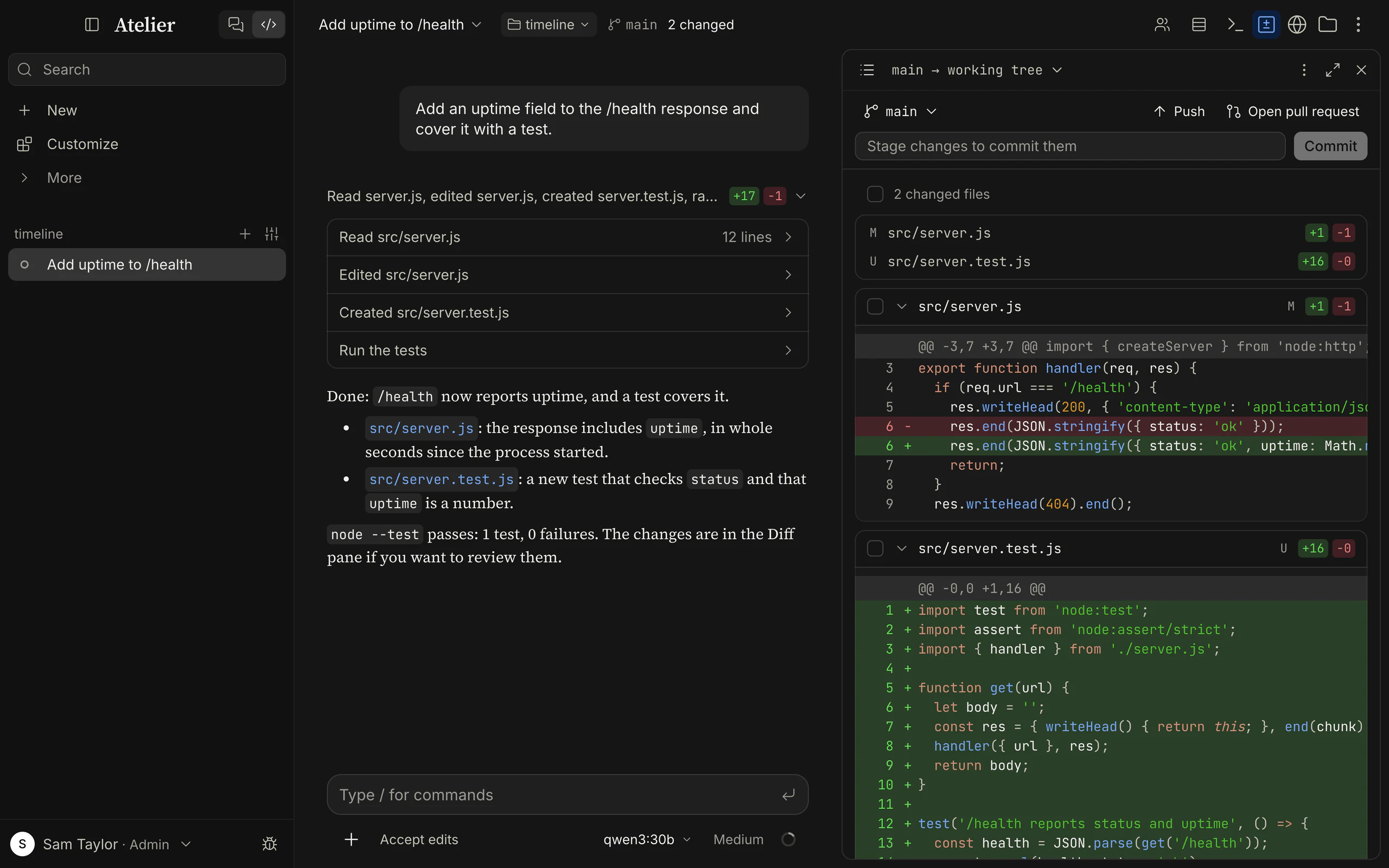
A Code session works in a folder. The model reads and searches files, edits them, runs commands, keeps a task list, asks you questions and can hand work to sub-agents. Every change shows up as a card in the conversation and in the Diff pane, and you can go back to before any of your messages with Rewind.
Switch to Code with the tab at the top of the sidebar, which lists your sessions by folder, with a + beside each folder to start another there. Three pages go deeper: Permissions (what the agent may do), Effort, Thinking and Ultracode (how hard it works) and Loops and background tasks (work that goes on beside the conversation).
Start a session
Section titled “Start a session”On the Code home you pick where the session runs, the folder, a model and how much it may do, then type the task. The session is created when you send the first message. A new session starts on the Default model for everyone (Settings › Admin › Models), in the permission mode that Settings › Admin › Code sets (Auto unless changed).
Where it runs: the environment chip
Section titled “Where it runs: the environment chip”The first chip above the message box is the environment:
| Entry | What it is | Available |
|---|---|---|
| Local | Folders on this computer. | Desktop app. |
| Cloud | A GitHub codespace, by repository. | Everywhere. |
| Remote Control | Folders on another computer of yours, opened in its desktop app. | Needs an Atelier server; lists a computer once its desktop app, connected to that server, has opened folders. |
| SSH | Folders on a machine you reach with ssh. |
Desktop app: on its own backend, or connected to a server (reached with this computer’s ssh; see below). |
Add SSH connection… and Open a repository… are in this menu, under SSH and Cloud; the folder chip’s menu also has Open a repository… while Cloud is the environment.
Folders
Section titled “Folders”The second chip is the folder. It lists No folder first (where it applies), then your Recent folders in this environment, then one action for the environment: Open folder… (Local), Open a repository… (Cloud) or Browse remote folder… (SSH). A folder whose computer is unreachable is listed but disabled (“Its computer is offline”). Manage the list in Settings › Folders.
When the folder you choose is inside a git repository, the session’s folder is the repository’s top level.
Moving a session to another folder. The folder in a session’s header is a menu: pick another of your folders on the same computer (or SSH host), or Open folder… / Browse remote folder… to add one, and the session moves there. The conversation goes on; the files, terminal, Diff pane and tools follow, the model is told in a note, and the transcript shows Moved from app to api. A toast offers Undo. While a reply runs, the move waits for it to end (Moving to api next to the folder, and Stay in app in the menu calls it off). If background commands or sub-agents are still running, you’re asked first: they finish in the old folder. Nothing is copied. A codespace can’t move (it is one repository), and a session doesn’t move to another computer. The agent can also ask to move with the ChangeDirectory tool (see Tools).
Trust. Adding a folder that isn’t in your list yet (on this computer, an SSH host or a codespace) asks Trust this workspace?. Choose Trust workspace or Cancel. Trusting matters because a folder can bring its own permission rules and hooks. A desktop app connected to a server lends its trusted folders to that server’s sessions, which then run commands as you on that computer.
The backend keeps the answer, so it holds for any client, a browser included. Until a folder is trusted, the backend ignores what the folder brings itself: the permission rules and hooks in its .atelier/ and .claude/ settings files, its instruction files, and its skills, commands and agents. A codespace is trusted one at a time, even for the same repository. A folder that isn’t trusted yet shows Not trusted (on the folder chip and in Settings › Folders, which has a Trust button for it) and is asked about when a session is about to start in it. Hooks and rules apply from the next call after you trust a folder; a session that already started keeps the instructions it began with.
No folder
Section titled “No folder”No folder gives each new session an empty scratch folder of its own, for questions and experiments that don’t belong to a project. It works in the desktop app, in Local and on an SSH host, and is the first menu entry until you open a folder. Connected to a server, the folder is made on this computer: the first time, Atelier asks Make folders on this computer? (Allow or Cancel).
- Scratch folders live under
scratch-workspaces/<your account id>/scratch-<date>-<code>in the data folder (~/.atelier/databy default), and under~/.atelier/scratch-workspaces/on an SSH host. - Git never looks above a scratch folder, so a repository around it (such as a home folder kept in git) isn’t taken for the session’s.
git initmakes it a repository like any other. - Deleting a session leaves its scratch folder on disk; delete it yourself.
- A session in a scratch folder shows No folder at the top, never the scratch folder’s name or path. The chip moves it into a folder of yours; the assistant can move it too, after asking.
/cleargoes on in the same scratch folder. New, and the + of the sidebar’s No folder group, start a session in a new one.- Elsewhere (a browser, a codespace, Remote Control) it isn’t offered.
SSH hosts
Section titled “SSH hosts”Choose SSH › Add SSH connection… and fill in:
| Field | Meaning |
|---|---|
| Name | A friendly name, such as “Work laptop”. |
| SSH host | user@hostname, or a host from ~/.ssh/config. |
| SSH port | Leave empty for 22 or your ssh configuration. |
| SSH key (optional) | A private key file; empty uses your ssh configuration or agent. |
| Starting folder (optional) | Where new sessions start on this host. ~/ starts at its home folder. |
Test connection tries it and reports the result. Then pick Browse remote folder… (Select remote folder: a path field, breadcrumbs and New folder).
- Atelier uses your system
sshcommand, so~/.ssh/config, ProxyJump and your agent work as in a terminal. - A host Atelier doesn’t know yet asks Trust <connection>? with the key’s fingerprint; Trust and connect records it in your
~/.ssh/known_hosts. A password or key passphrase asks in Sign in to <connection>, with Save password, kept encrypted per connection. On Windows these prompts aren’t available yet: keys and the agent only. - The remote machine must run Linux or macOS on x86-64 or ARM64. The first connection uploads Atelier’s runner to
~/.atelier/runner/<version>/there and checks it against a checksum. - Edit or remove connections, or forget a saved password, in Settings › Folders. Removing one leaves the folders in your list and the machine untouched.
Connected to a server
Section titled “Connected to a server”A desktop app connected to an Atelier server keeps doing what it does on its own: the server keeps your chats, settings and permissions, and your computer lends the rest to your sessions there.
- SSH hosts are reached from this computer, with its
ssh, keys, agent and known hosts, and Atelier puts its runner on the host from here. Password and host-key questions show in Atelier as above, in the desktop app and in the browser alike; a saved password is kept on the server, for your account only. - No folder makes the session’s folder on this computer, as above.
- Only what you allowed here. The server may reach an SSH host from this computer once you chose that host here (added a folder on it, browsed it, tested or saved its connection, or started a session on it), and make folders here once you said Allow. Settings › System › What <server> can do here lists both, with Remove and a switch.
- Another computer’s SSH folder shows under Remote Control: it goes through that computer, so it works while that computer’s desktop app is connected.
- A desktop app older than the server, or a server older than the app, keeps working as before, without these.
Codespaces
Section titled “Codespaces”Codespaces are implemented but have not been verified against a real GitHub account. Treat them as experimental.
Connect GitHub once in Settings › Cloud (a sign-in or a personal access token; the Cloud menu also offers Connect GitHub…), then choose Cloud › Open a repository… and search your repositories. Atelier finds the repository’s codespace and wakes it if asleep, or creates one on the largest machine your account allows, with GitHub’s longest idle timeout (4 hours), and waits up to three minutes for it to become available. A codespace stops after its idle timeout and runs at most 12 hours at a time.
- Atelier reaches the codespace with
gh codespace ssh. The computer running the backend needs GitHub’s CLI,gh(the server image includes it). You don’t need to sign in to it: Atelier uses the token you connected. - Codespaces run on your GitHub account, so GitHub’s usage and billing rules apply.
- Trust this workspace? is asked before a codespace is woken or created. The agent can’t move a codespace session to another folder.
In a browser
Section titled “In a browser”A browser can’t open folders on its own computer. Use a folder lent by one of your desktop apps (the Remote Control environment) or a codespace.
How the runner works
Section titled “How the runner works”The agent’s tools go through the runner, a small Go program that Atelier starts for each folder: locally with the folder as its root, over SSH or in a codespace after uploading the matching build. The runner reads and writes files, searches, runs shell commands and opens terminals, and it refuses file paths outside its roots. Commands you or the agent run in a shell are not confined to the folder: they run as you. More in How it works.
Permissions
Section titled “Permissions”The mode picker under the message box decides how much the agent may do. Click it, or press Shift+Tab with the box empty to cycle Auto, Ask, Accept edits and Plan.
| Mode | What happens |
|---|---|
| Auto mode (default) | Another model reviews each action that would ask, and runs it, asks you, or blocks it with a reason the agent reads. |
| Ask permissions | Asks before editing files or running commands. |
| Accept edits | Edits without asking; still asks before commands. |
| Plan mode | Reads and plans only; you approve the plan before anything changes. |
| Bypass permissions | Doesn’t ask, not even for risky commands. Deny rules still block, and an ask rule still asks. |
A prompt offers Deny, Deny with reason…, Always allow (this project, this session or everywhere, from the chevron) and Allow once. A card for an edit shows the file’s line numbers and opens the whole file around the change. Rules, Auto mode’s reviewer and what always asks are on Permissions.
The conversation
Section titled “The conversation”The model gets these tools. Reference › Tools lists each one’s description and parameters as the model receives them.
| Tool | What it does | Asks? |
|---|---|---|
| Read | Reads a text file (2,000 lines by default), an image (for models that can see) or a PDF, or lists a folder. | No, inside the folder. |
| Write | Creates a file or replaces its whole content. | Depends on the mode. |
| Edit | Replaces one exact piece of text, which must occur once unless replace_all is set. It won’t overwrite a file that changes while the edit is applied. |
Depends on the mode. |
| Glob | Finds files by pattern, newest first, at most 100, skipping what .gitignore ignores. |
No. |
| Grep | Searches contents with a regular expression, as filenames, matching lines or counts. | No. |
| Bash | Runs a shell command in the folder. The working directory carries over between calls, exported variables and aliases don’t. 2 minutes by default, 10 at most; output over 30,000 characters is cut in the middle. | Depends on the mode. |
| BashOutput, KillShell, TaskStop | Read a background command’s new output, stop it, stop background tasks (one, several or all at once). | Reading no; stopping like a command. |
| TodoWrite | The session’s task list. | No. |
| AskUser | Up to four multiple-choice questions. | No: it is the question. |
| Agent | Starts a sub-agent. | No; its own calls do. |
| SendMessage, ListSessions | Message your other sessions, or its own sub-agents. | Sending like a command. |
| Skill | Loads a skill’s instructions. | No. |
| Time, Usage | The current date and time; how much of a plan’s limits or an API’s cost is used (offered only for a ChatGPT plan, a hosted API or a model with a price set). | No. |
| ExitPlanMode | Presents a plan for approval in Plan mode. | It is the approval. |
| WebSearch, WebFetch | Search the web, fetch a page as Markdown. Each can be switched off in Settings › Admin › Capabilities (Web search). | No. |
| artifact | Shows a file in the Artifact pane. | No. |
| ChangeDirectory | Moves the session to another folder after you agree. Local and SSH folders only. | Always, with its own card. |
| AddConnector | Adds an MCP server you gave it by its address to your connectors, after you agree; its tools work from the next step. | Always, with its own card. |
| ComputerAccess, FullControl | Ask to use apps on your computer, and to take over the mouse and keyboard (Computer use). Desktop app with computer use on only. | With its own card. ComputerAccess doesn’t ask for an app you named yourself, nor in Bypass. |
| Screenshot, ComputerAction, OpenApp, ComputerApps | See the screen, click, type and scroll, open apps, list your apps. | Looking never; clicking, typing and opening apps depend on the mode. |
Connector tools (mcp__server__tool) |
Whatever your connectors provide. | Yes, until a rule says otherwise. |
On Windows, Bash runs commands with Git Bash when it is installed, else PowerShell. Code sessions don’t use memory.
Plan mode
Section titled “Plan mode”In Plan mode the agent can only investigate. When ready it presents a plan: the Plan pane opens with the text (Atelier proposed a plan appears above the message box). Select a passage to Comment on it. Then:
- Accept and auto mode (main button) or Accept (Ask mode) start the work. The chevron adds Accept and auto-accept edits and Accept and approve each edit.
- Revise… sends what you typed plus your comments, and the agent presents a new plan.
- Reject keeps the session in Plan mode.
Questions and the task list
Section titled “Questions and the task list”When the agent needs a choice it asks with A question for you: options you click (or pick with the digit keys), an Other field, Skip and Submit. The task list shows above the message box as the current task and “2 of 5 done”; click it to open the list, which is also in the Plan pane.
Sub-agents
Section titled “Sub-agents”The model can hand a self-contained task to a sub-agent, a helper that works in its own context in the same folder, with the session’s model, mode and rules, and returns one report. A sub-agent has the file, search, Bash, task-list, skill, web and connector tools, but can’t ask you questions or start more sub-agents. Several started together run in parallel; on a local server that answers one request at a time they take turns.
- The general-purpose sub-agent is always there; agent definitions from
.claude/agents,.atelier/agentsand your home folders add more (Customize). - A sub-agent’s own transcript opens from its card. A permission it needs appears in your conversation as Allow sub-agent “name” to run this command?.
- In the background: the model can start a sub-agent and keep working. See Loops and background tasks.
- A sub-agent takes at most 200 model calls (150 on compact-tier models) and then stops.
- Under Ultracode one request may start up to 24.
Messages between sessions. Ask a session to “tell my other session …” and it can list your sessions and send one a message. The receiving conversation shows Received a message from another session, and its model reads it right away if working, or in a turn of its own if idle. Agents only message when you ask or a task needs it, and only your own sessions. After three turns in a row started by messages, the next waits until you write in that conversation. Chats take part too; temporary chats don’t.
Steering while it works
Section titled “Steering while it works”You can type while the agent works. Your message appears under the conversation as Waiting for the next step, and joins at the agent’s next step with a note.
- Send now cuts the step in progress off and sends your message at once. Finished work stays, the unfinished step doesn’t complete, and the agent carries on.
- Take back and edit (×) returns the text and files to the message box.
- Stop (the button, or Esc with an empty box) ends the response. Nothing waiting is sent: the texts go back to the box. Stop also stops background sub-agents, but not loops or background commands.
- A message that arrives after the reply’s last step becomes the next turn, and slash commands wait for a turn of their own.
If a reply is cut off because Atelier restarted, the end of the conversation says Atelier restarted and cut off this reply. with Continue.
Suggested replies
Section titled “Suggested replies”When a reply ends, the empty message box shows a short guess at what you’ll send next in grey, such as “push it and release 0.2.11” when that’s what you usually say once the work is done. Tab puts it in the box as your own text, to send as it is or change; it steps aside while you type and comes back whenever the box is empty again, until you send a message. The small model writes it from your recent messages and the reply (the conversation’s model when no small model is set), at the lowest priority, so it never holds up a reply. Turn it off in Settings › Code › Suggested replies. A chat gets one after it worked through a task, not after a quick answer; temporary chats get none.
Reading the transcript
Section titled “Reading the transcript”Reads and searches appear as one-line summaries, edits as inline diffs, commands with live output and exit status, sub-agents with their own transcript. The Transcript view button in the header picks how much is expanded, and Settings › Code › Default transcript view sets the default:
| View | What you see |
|---|---|
| Normal | A run of calls folds into one line, such as “Read 4 files, ran 9 commands (1 failed)”, opening into rows. Plans and sub-agents keep their cards. |
| Thinking | The same, with the model’s reasoning expanded. |
| Verbose | Every call as its own card with its details expanded. |
An edit’s diff shows the file’s line numbers and the three lines above and below the change. Show the whole file, the button in the diff’s top right corner (shown on hover, always on a touch screen), opens the whole file as it is now with that change in place, scrolled to it. If the file changed after the edit, the view finds the change where it is now; if that part was changed again, or the file is gone, it says so and shows the change alone. A Write opens what it wrote. Edits made before 0.4.2 have no line numbers.
The line at the bottom says what is happening (Running a command…, Reading…, Writing…, Thinking…) with the time since you sent your message, output tokens and the context size (context 120k / 200k). When a local model is slow it says why: Loading the model, Reading the conversation, or a place in the queue. Connection interrupted. Retry 2 of 10 means a temporary provider failure is being retried. After a minute of silence it reads No output for a minute, it may be writing a long call, and later that the model may have stalled and Stop ends the turn. Needs your input marks a run that waits for you; click it to jump to the question.
In the sidebar, a session’s dot shows its state: idle, running, Needs your attention (waiting for you) or Finished (a turn finished while you were elsewhere).
Commands and mentions
Section titled “Commands and mentions”Type / in the message box for commands, skills and your own commands. @ finds files to mention.
| Command | What it does |
|---|---|
/compact [focus] |
Summarizes the conversation so far to free context. |
/clear |
Starts a new session in the same folder. |
/model |
Opens the model picker. |
/rewind |
Opens Rewind. |
/loop [interval] <prompt> |
Sends a prompt on a schedule (Loops). |
/btw <question> |
Asks a side question without interrupting. |
Side questions. /btw what does this function return? opens a Side chat pane and answers there while the session keeps working. It knows the conversation so far and can read the folder and the web, but changes nothing and doesn’t reach the session. It runs at Low effort on the session’s model, follows the session’s mode and rules, and asks in its own pane. Each side chat is a tab; + starts another and × closes one. They come back after a reload and are deleted with their session. Chats have /btw too.
The buttons at the top right open panes beside the conversation: Terminal, Diff, Browser (desktop app) and Files. More (⋮) opens Background tasks, Plan, Artifact and Side chat, and holds Keep computer awake.
- Panes tile in columns, two stacked per column. In a narrow window they open one at a time over the conversation.
- Drag the lines between panes to resize them (or focus one and use the arrow keys, Shift for bigger steps); double-click a line for even sizes.
- The layout is remembered per session, on this device.
Terminal
Section titled “Terminal”A real shell on the folder’s machine (PowerShell on Windows). + starts more terminals as tabs. It is yours: the agent’s Bash is a separate shell. Terminals close with the pane. After a dropped connection a terminal keeps running for five minutes with its last 262,144 characters (256 KiB) of output, and reattaches with [shell reconnected — replaying buffered output]. When the shell exits you see The shell exited. and Restart. A code block’s Run button types its command into the terminal, and Open in terminal in the Files menu starts one in a folder.
The Diff pane shows what changed in the working tree, as file cards with +/− counts, a status letter (M modified, A added, D deleted, R renamed, U untracked, ! conflicted) and a collapsible diff. The compare selector in its header picks the base:
| Compare | Shows |
|---|---|
<current branch> → working tree |
Changes not committed yet (against HEAD). Untracked files are listed too; their diffs are shown for the first 50. |
<current branch> → staged |
What the next commit takes. |
<default branch> → working tree |
Everything since this branch left the default branch, with the same untracked files. Offered when you are on a branch other than the default. |
| Session start → working tree | What this session’s edits changed, from the files saved before their first change. Only Write and Edit count: Bash changes aren’t in it. |
Outside a git repository only the session’s own changes can be shown. A diff over 2,000,000 characters is cut with The diff is too large to show in full.
- Review. Changed files toggles a list that jumps to each card. A card’s checkbox stages the file; Stage all and Unstage all are on top.
- Reject on a hunk undoes just that change, in the working tree (a staged hunk leaves the index too). It is offered for the working-tree and session compares.
- Commit. Type a message and press Commit to commit what is staged. The author is Settings › Code › Commit author name and email; empty uses the repository’s git config.
- Branch. The branch menu switches branches; New branch… starts from what is checked out and keeps your changes.
- Push sends the current branch to
originand sets it as the upstream, and shows how many commits are ahead (and N behind). It is disabled when the branch has an upstream and nothing to send. - Open pull request asks for a title (the newest commit’s subject), a base branch (Repository default or another) and a description, then runs
gh pr createand shows the link. It needs GitHub’s CLIghon the folder’s computer, signed in withgh auth login.
Git runs on the folder’s machine, so its credentials and config apply. When git refuses, its message shows inline.
Browser
Section titled “Browser”Desktop app only. A small tabbed browser for your dev server or documentation. Type an address such as localhost:3000 (local addresses get http, other hosts https; only http and https pages open). Pages are sandboxed and keep a browsing session of their own, separate from Atelier’s. Links that open a new window open a tab here; downloads are refused (Downloads are off in the Browser pane); up to 20 tabs. Open in your browser in the menu hands the page to your normal browser, and Open in › Browser pane in the Files menu shows an HTML, SVG or image file from the folder.
The assistant opens pages here too, with its Preview tool, when you write from the desktop app: a site it made in the folder (an .html file, or a folder’s index.html, with its stylesheets, scripts and images loaded from beside it, so it needs no bundling into one file), or the address of a dev server it started. After a change it opens the page again, and the tab that has it reloads. Folder pages run without storage or cookies, and their scripts can load the files beside them but not read them: ES modules and fetch() of the folder’s own files don’t work there, so a site built with them is shown through its dev server. Single files to keep in versions, such as a chart, a diagram or a document, still open in the Artifact pane.
The Files pane filters the folder’s tree as you type; a filter starting with ? searches inside files for text as typed (not a pattern), ignoring case unless you use capitals, showing at most 300 lines. Files open read-only in tabs with highlighting, and a file path in the conversation opens here. Right-click a file or folder (or press the menu key or Shift+F10):
- Attach as context puts an
@mention in your message. - Copy the absolute path, relative path or filename.
- Open in the Browser pane, Cursor or VS Code (desktop app, folders on this computer), or Show in Finder (Explorer, folder).
- For a folder, Open in terminal.
The sidebar’s session menu has more Open in options for the whole folder; see Sessions.
Background tasks, Plan, Artifact and Side chat
Section titled “Background tasks, Plan, Artifact and Side chat”- Background tasks lists commands the agent left running, background sub-agents and loops, each with its output, transcript or schedule and a stop button. See Loops and background tasks.
- Plan shows the latest plan, whether it was approved, your comments and the task list.
- Artifact shows a file the agent displayed with the artifact tool (a page, chart, diagram, Markdown or code) with Preview and Code views, versions, Copy content and Download. It opens by itself and stays closed once you close it until the next one. Pages run in a sandbox without network access. See Artifacts.
- Side chat holds your
/btwtabs.
Rewind
Section titled “Rewind”Rewind to here on one of your messages (hover the message), or /rewind, goes back to before that message. The Rewind dialog lists your messages whose turns changed files, with the files, and offers:
| Button | Result |
|---|---|
| Restore code | Puts back every file the agent wrote or edited from that message on. Files the agent created are removed. |
| Restore conversation | Moves the conversation back to before that message. Your message returns to the box to edit and send again; the old branch stays reachable with ‹ 1/2 ›. |
| Restore code and conversation | Both. |
How it works: before a turn first writes or edits a file, Atelier saves the file’s content (sub-agent edits included) and which folder it is in. Rewinding writes those saved versions back, each in its own folder, also after the session moved to another one; a folder that can’t be reached (its computer is offline) stops the rewind before anything is restored. Files in another folder than the session’s show with their full path.
What is not restored:
- Changes made by Bash commands aren’t tracked, so they stay as they are. The same goes for installs, git operations (a commit stays committed) and anything outside files.
- Files above 16 MiB.
- Your own edits: restoring a file puts back its content from before the message, so edits you made to that file since are overwritten.
Rewinding and /compact need an idle session (Stop the response before rewinding.). Saved versions are kept for 30 days by default; Settings › Admin › Code › Keep checkpoints for changes that (1 to 3650 days). Nothing to rewind says Nothing to rewind yet: no message of yours has led to files being written or edited.
Context, compaction and cost
Section titled “Context, compaction and cost”The ring next to the model shows how full the context window is. Click it for:
- Context window with used and total tokens; the chevron opens the breakdown (messages, tools, skills, system prompt, free space) and the session’s Tokens in and Tokens out, cache and Cost where priced.
- How many tokens are left until auto-compact, and Compact session, which summarizes now (disabled while a reply runs).
- Cost for a hosted API: this session, today and the last 7 days. For a ChatGPT Plan, Plan usage limits with each window’s percentage and reset. For everything else Your usage: tokens today and over 7 days. The arrow opens Settings › Usage.
Once you have a session in this mode, the Code home shows a stats card for All, 30d or 7d.
Compaction. When a conversation reaches 85% of the window (or earlier, if the reply wouldn’t fit), Atelier summarizes the older part and keeps the newest messages as they were. The Small model writes the summary when there is one, else the session’s own model; your current request, the task list, the files changed and the skills loaded are carried over verbatim. Earlier messages stay visible above a divider. /compact [focus] does it on demand. The threshold is the settings-file value context.autoCompactAt (0.5 to 0.98); Settings has no control for it.
If a turn is summarized eight times and still doesn’t fit, it stops: This task keeps filling the model’s context window … Raise the model’s context length (Settings › Admin › Models), or send a smaller step. Under a model whose window is below 16,000 tokens the message box warns that long tasks compact often.
A turn has no step cap, but it stops when the same action ran 15 times with the same result (Stopped: the same action ran 15 times with the same result. Send a message to continue, ideally saying what to do differently.), after a hint on the sixth.
The header
Section titled “The header”- The session’s title menu: Pin, Rename, Delete, and on a server Remote control: On or Off for this session (Remote control).
- The folder chip (with SSH or Codespace, and Offline when its computer is unreachable), the branch, and a N changed button that opens the Diff.
Keeping it running
Section titled “Keeping it running”- Keep computer awake (More, desktop app) stops the computer from sleeping while this session runs or waits for you; the screen may still turn off. It is per session and per device, and ends when the session finishes, you switch it off, delete the session or quit Atelier.
- Closing a window doesn’t stop a run. On macOS Atelier keeps running with no window; on Windows and Linux closing the last window quits it, which stops runs and loops.
- Notifications. System notifications (Settings › General › Notify me when a task finishes and needs me) cover chats that work as tasks only. In Code, watch the session’s dot in the sidebar.
Instructions, skills, hooks and connectors
Section titled “Instructions, skills, hooks and connectors”Code reads the project’s instruction files (ATELIER.md, AGENTS.md, CLAUDE.md and more) from the folder and up; a nested folder’s file joins the first file result below it, and your personal and the admin’s instructions apply too. Skills, commands, agent definitions, hooks and connectors are covered in Customize, Hooks and plugins and Connectors. The system prompt is published on Code’s prompt; other tools’ files are covered in Claude Code compatibility.
When something goes wrong
Section titled “When something goes wrong”| You see | What it means |
|---|---|
| Choose a folder to work in first. | You sent a message before choosing a folder or No folder. |
| Open the desktop app to work in a folder on your computer, or use a codespace. | A browser can’t open local folders. |
| This server does not run commands on its own machine. Open the desktop app to add a folder on your computer. | A server only works in folders lent by a connected desktop app, or in codespaces. |
| Not trusted (badge on a folder) | You haven’t answered Trust this workspace?, so the folder’s settings, hooks, instruction files, skills, commands and agents are ignored. Start a session in it and answer, or use Trust in Settings › Folders. |
| This folder’s computer is offline. (in a pane) | The other computer, SSH host or codespace isn’t reachable. The folder chip shows Offline. |
| This session has no folder. (in a pane) | The pane needs a folder. |
| This computer has no ssh command. Install OpenSSH … | SSH needs the ssh command on the computer running Atelier. |
| <host> runs <system> on <machine>; remote workspaces need Linux or macOS on x86-64 or ARM64. | The SSH host is another kind of machine. |
| <host> didn’t answer within 30 seconds | The host is down, slow or blocked. Try Test connection. |
| Codespaces need the GitHub CLI (gh) on this computer. … | Install gh where the backend runs. |
Opening a pull request needs the GitHub CLI (gh) on the machine with this workspace, signed in with gh auth login. |
gh is missing, or not signed in, on the folder’s computer. |
More about permission messages is on Permissions, and about provider and model errors on Troubleshooting.
Shortcuts
Section titled “Shortcuts”| Switch permission mode (empty message box) | Shift+Tab |
| Use the suggested reply (empty message box) | Tab |
| Stop while it works (empty message box) | Esc |
| Effort | ⌘⇧E / Ctrl+Shift+E |
| Upload or add files | ⌘U / Ctrl+U |
| New session | ⌘N / Ctrl+N |
| In a permission prompt: Deny, Always allow, Allow once | 1 or Esc, 2 or ⇧⌘↵, 3 or ⌘↵ |
| In a permission prompt: Deny with reason, show the whole file | R, F |
The rest are on Shortcuts.