
Get started
What Atelier is
Section titled “What Atelier is”Atelier is a workspace for language models. Its two modes share one set of conversations, settings and models:
- Chat for conversations, with artifacts, projects, attachments, memory and web search, and for longer tasks that end in files you can open, worked through in a sandbox of the chat’s own or in a folder you give it. See Chat.
- Code for an agent that works in a repository: it reads and edits files, runs commands in a terminal and shows its changes as diffs, under the permission rules you choose. See Code.
It runs on the models you choose: a local server such as Ollama or llama.cpp, a hosted API with your own key, or a ChatGPT, GitHub Copilot or Mistral Vibe plan you already pay for. No model comes with Atelier.
There is one backend with two ways in. The desktop app (macOS, Windows and Linux) can run the backend inside itself or connect to a server. The web app is the same interface in a browser, served by an Atelier server you host (Self-hosting). There is no Atelier cloud; your conversations stay on the machine that runs the backend. Atelier is in beta; macOS is the most tested platform, Windows and Linux less so.
Install the app
Section titled “Install the app”Download it from atelierhq.dev/download; the install guide has the details for each system. If someone gave you an Atelier server’s address, you don’t need to install anything: open it in a browser, or choose Connect to a server in the desktop app. Prefer the terminal? Atelier CLI is a Code session there, with a server or on its own.
Choose where Atelier keeps your chats
Section titled “Choose where Atelier keeps your chats”The first time the desktop app opens, it asks Where should Atelier keep your chats?
| Choice | What it means |
|---|---|
| Run on this computer | Atelier runs its own backend here; chats and settings stay on this computer. Pick this to try Atelier or to use it alone. |
| Connect to a server | Use an Atelier server, for example in your home lab, and sign in with your account there. Your chats live on the server, which you can also open from a browser. |
Either way the desktop app can open folders on this computer for Code and for chats. In a browser there is no such choice: you open your server’s address and sign in.
Run on this computer
Section titled “Run on this computer”Atelier starts its own backend inside the app and asks one thing: What should Atelier call you? Type your name and choose Continue. There is no password, because only the app itself can reach this backend. You can add a PIN or password as a screen lock later in Settings › Account (see Security).
Being “the owner” on this computer means:
- You are the first account on this backend, which makes you the admin: the sidebar shows “Admin” beside your name, and Settings has an Admin group (listed below).
- Your chats, settings and memory are in
~/.atelieron this computer, and your provider keys are encrypted with the operating system’s secure storage. See Install. - There is no sign-in to manage: Settings › Account has no password, sessions or devices, Log out becomes Lock Atelier, and Setup lets you switch to a server later.
Connect to a server
Section titled “Connect to a server”Choose Connect to a server and type the address in Server URL. The field accepts atelier.example.com,
192.0.2.20:7340 or a full URL.
- Without
https://, Atelier trieshttps://first and, if nothing answers within 4 seconds, plainhttp://. Plainhttp://is only accepted for this computer, your local network and Tailscale (*.ts.net); any other server must usehttps://. - With a scheme typed, that exact address is used.
- If nothing answers, you get “No Atelier server answered at …”. Check the address and that the server is running.
Found on your network lists Atelier servers that answered on this computer or its local networks (port 7340, within about 3 seconds), with address and version; click one to connect. Most people use the field above instead. On a Mac, the first time you connect to a server on your network, macOS asks whether Atelier may find devices on your local network. Allow it, or Atelier can’t reach the server (see Troubleshooting).
Then sign in on the server’s screen:
- Sign in with your username and password, or Sign in with a passkey in a browser.
- I have a code if an admin gave you an invite code: enter it, then your name, username and password.
- Create an account appears only when the admin opened sign-up; the account waits for an admin to approve it.
- On a brand-new server you create the first account, the admin, with the one-time setup token from the server’s log (see Self-hosting).
A desktop connected to a server lends the folders you open to that server’s sessions, which then run commands on this computer as you. See Accounts for roles and sign-in, and Security for what a lent folder allows.
Changing your mind
Section titled “Changing your mind”Nothing you choose here deletes anything. Before sign-in, Use a server instead (on this computer) or Change server goes back to the choice. Afterwards, Settings › Connection switches between this computer and a server, or to another server; the profile menu at the bottom of the sidebar opens it too. Your chats on this computer stay where they are; switch back to get back to them.
Connect your first model
Section titled “Connect your first model”Only admins connect providers. A new install opens on the Chat home like any other day; the model menu under the message box says Choose a model and offers Add a provider, which opens Settings › Admin › Providers. There Atelier lists what it found by itself:
- Local servers on their usual ports: Ollama on 11434, llama.cpp on 8080 and LM Studio on 1234. Only an answer in the server’s own shape counts, so another app on the same port isn’t mistaken for a model server.
- API keys in the environment:
ANTHROPIC_API_KEYandOPENAI_API_KEY. Atelier sees only the environment it was started with. An app opened from the Dock or a launcher doesn’t read your shell profile (only itsPATH), so a key exported in~/.zshrcalone won’t be found; start Atelier from a terminal, set the variable system-wide, or add the provider by hand.
The scan runs on the machine that runs the backend: your computer in “Run on this computer” mode, the server when you are connected to one.
Press Set up next to what it found: the provider’s form opens filled in, and Add provider tests and saves it. A
key found in the environment is copied into Atelier’s encrypted secret store, and only a masked ending is shown
afterwards. Scan again looks again. Once a provider is there, its first model is chosen in the model menu until you
pick another. If Ollama runs but has no models, pull one (for example ollama pull qwen3) and try again.
Add provider on the same page offers the full list:
| Provider | What you need | Notes |
|---|---|---|
| Ollama | Ollama running, default http://localhost:11434 |
No key. |
| llama.cpp | llama-server running, default http://localhost:8080 |
No key. For tool calls start it with --jinja, or switch the model to prompted tools. |
| OpenAI-compatible | A base URL (default http://localhost:1234/v1, LM Studio’s) and a key if the server asks |
LM Studio, vLLM or any server with an OpenAI-compatible API. |
| Anthropic | An API key | Claude models through the Anthropic API. |
| OpenAI | An API key | GPT models through the OpenAI API. |
| Mistral | An API key from Mistral’s console, with billing on | Mistral’s models, priced per token. For EU-only processing, change the base URL to https://api.eu.mistral.ai. |
| Mistral Vibe | A Le Chat Pro or Team plan and a key for Vibe | Create the key in Le Chat under Code › Vibe CLI and paste it; uses the plan’s Vibe allowance instead of per-token billing. On a server, everyone using the provider spends the admin’s plan. |
| ChatGPT Plan | A ChatGPT plan; you sign in | Uses your plan’s limits instead of per-token billing. Unofficial. Desktop on this computer: your browser opens. On a server: a one-time code to enter on OpenAI’s page within 15 minutes, and everyone using the provider uses the admin’s plan. |
| GitHub Copilot | A Copilot plan; you sign in with GitHub | A code to enter at github.com/login/device; counts against the plan’s allowance. Unofficial. |
| ChatGPT Chat | A ChatGPT account | Experimental. ChatGPT itself, driven through a signed-in browser window. Desktop app only: on a server, each person adds it as their own model from their desktop app. |
| OpenRouter | An OpenRouter account or key | Connect with OpenRouter creates a key for you. Models marked free are limited to 50 requests a day (1,000 once you have bought 10 credits). |
| OpenCode Zen | An OpenCode Console key | Billing may be required; its free models may only work inside OpenCode itself. |
Providers covers every field, Local models the local servers, ChatGPT the two ChatGPT options, and Models how models are listed, hidden and overridden.
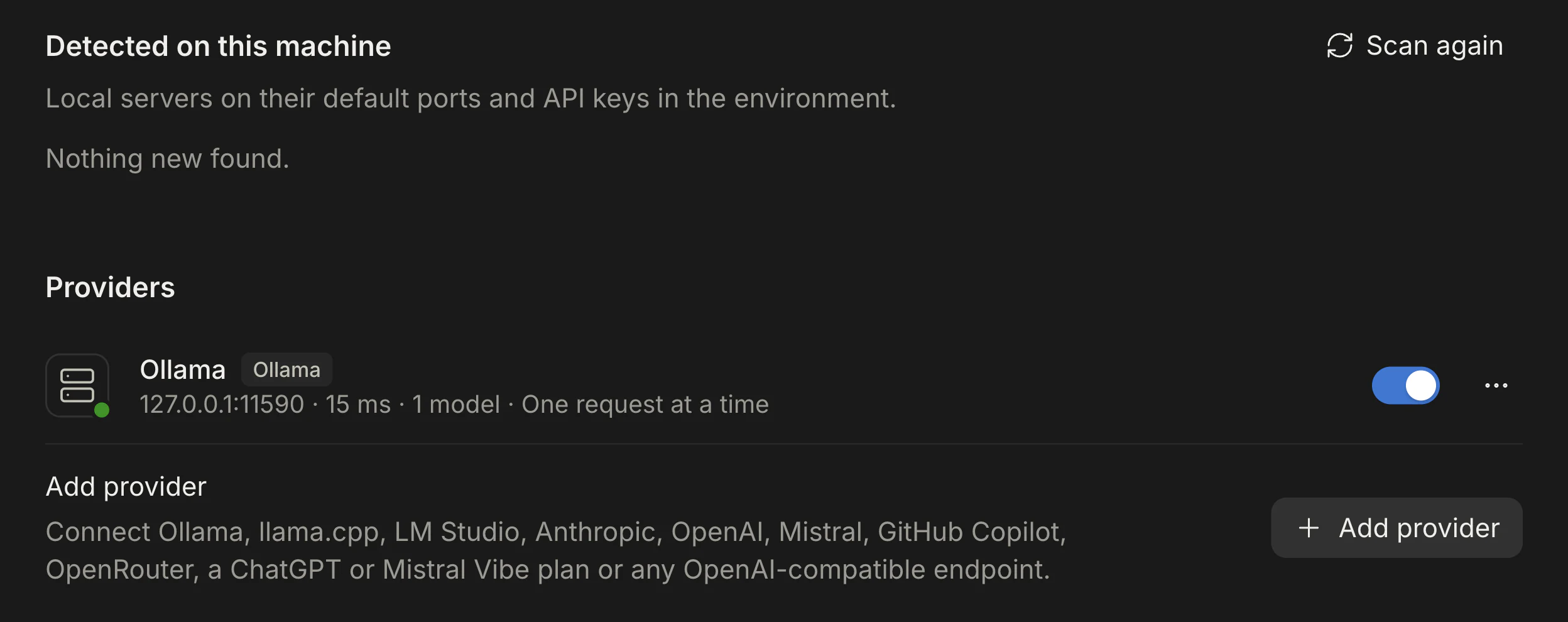
If you are not an admin, the model picker says “No models available” and “Ask an admin to connect a provider.”
Your first Chat
Section titled “Your first Chat”Choose New in the sidebar (⌘N or Ctrl+N), type in the message box and press Enter; Shift+Enter starts a new line. The model picker and effort setting are at the bottom right of the box.
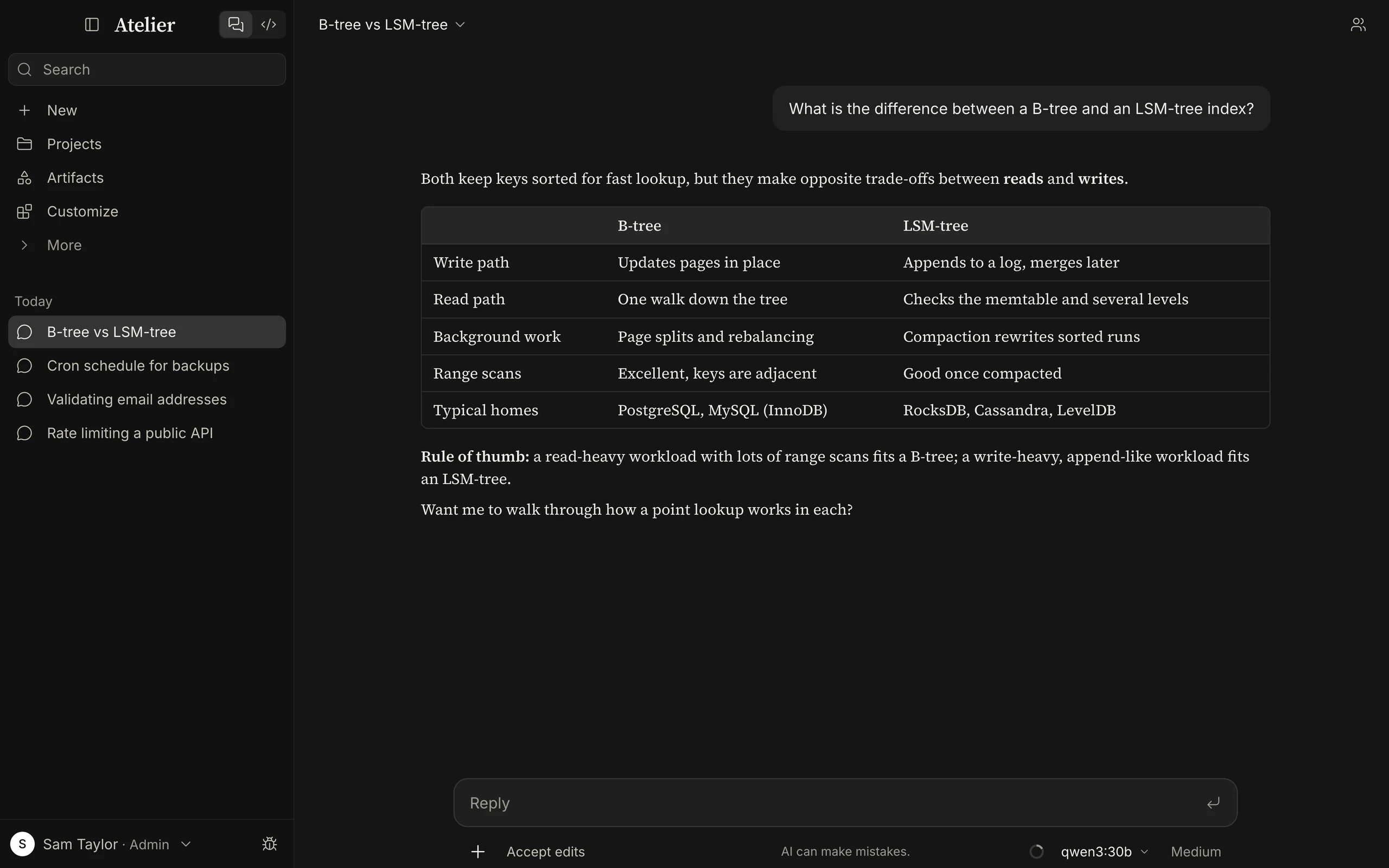
- While you have fewer than five chats, ideas under the box fill it with an example prompt.
- Attach images, PDFs and text files by dropping or pasting them, with ⌘U or Ctrl+U, or from the + menu.
- Research in the + menu is a per-conversation switch, off by default: each message then searches broadly and cites its sources. Plain web search is on from the start (see Web search).
- The ghost button at the top right starts a temporary chat that never appears in your history.
- Something a reply builds (a page, component, diagram or document) opens in a panel beside the conversation; see Artifacts.
Hover a message to copy it, retry a reply or edit your own message; the earlier versions stay, one click away.
Your first Code session
Section titled “Your first Code session”-
Choose the Code tab at the top of the sidebar, then New.
-
Above the message box, the folder chip says No folder until you open one (Select folder… when the desktop app is connected to a server). Open it and choose Open folder…. If the folder is inside a Git repository, Atelier works in the repository’s top level.
-
When a folder is new to your list, Atelier asks Trust this workspace? Its agent may read, write or run commands there, as you, so choose Trust workspace only if you trust what is in the folder.
-
Pick how much it may do with the mode at the bottom left of the box. Auto mode is the default.
Mode What it does Auto mode The model reviews each action that would ask, in a separate request, and blocks risky ones. Ask permissions Asks before editing files or running commands. Accept edits Edits without asking, still asks before commands. Plan mode Reads and plans only; changes wait until you approve the plan. Bypass permissions Never asks, not even for risky commands. Shift+Tab, with the message box empty, cycles Auto, Ask, Accept edits and Plan. Auto mode reduces prompts; it does not replace review of sensitive work. See Permissions.
-
Describe a task and press Enter. When something needs your approval you choose Deny, Allow once, or Always allow (for this project; the arrow beside it offers this session or everywhere).
-
Open the Diff pane (and Terminal, Browser, Files; the Browser is in the desktop app only) from the buttons at the top right to review what changed, commit, or reject a single hunk. More has Background tasks, Plan, Artifact and Side chat.
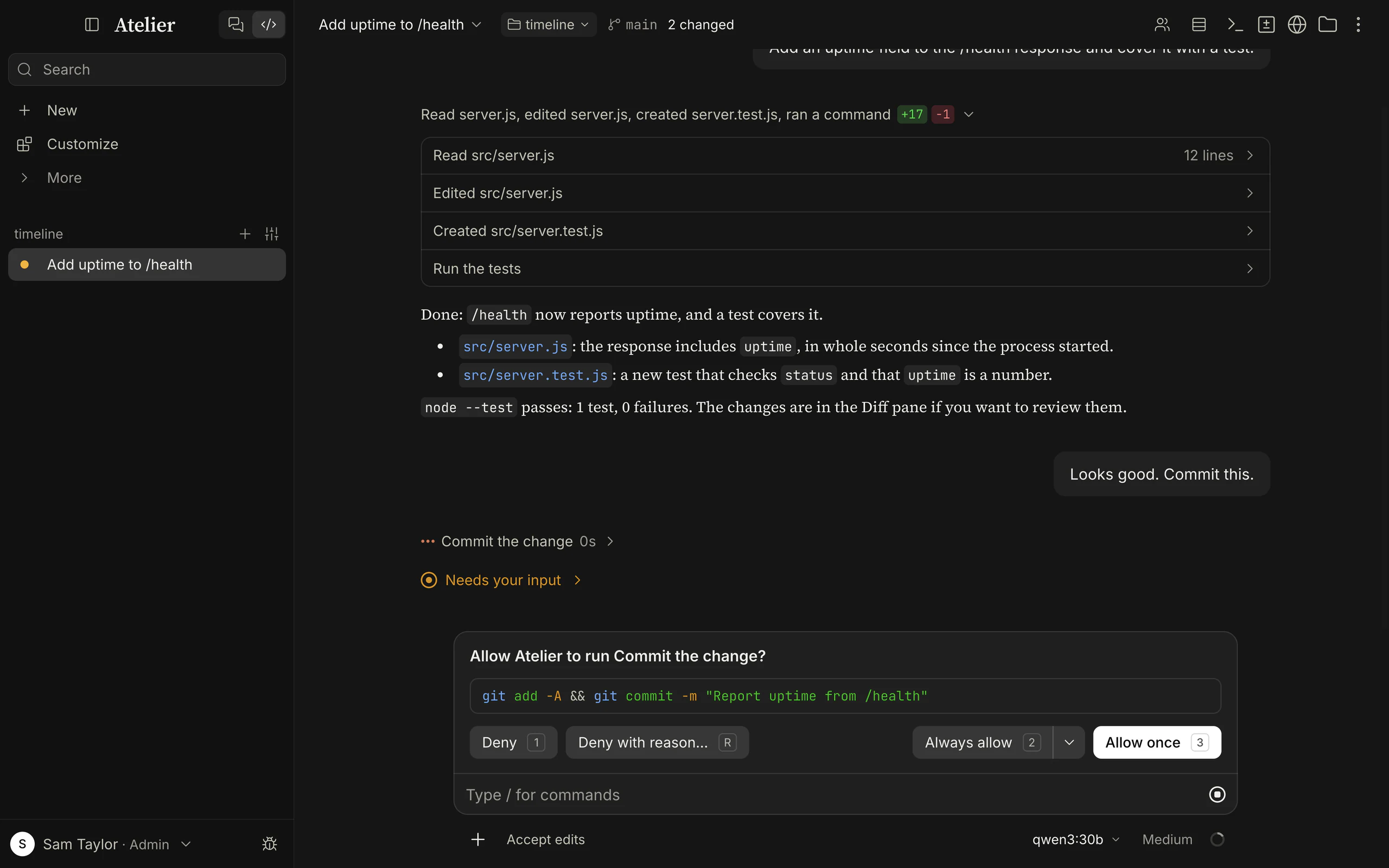
No folder (first in the folder menu in the desktop app, on this computer or connected to a server) gives each new session an empty folder of its own, a safe way to try Code. In a browser, Code works in a folder lent by one of your desktop apps or in a GitHub codespace; the server never runs commands on its own machine. See Code.
Your first task
Section titled “Your first task”A chat that is asked for a piece of work (a document, a spreadsheet, sorting files, reading a stack of PDFs) works through it as a task.
- Choose New in the Chat sidebar. To work on files you have, pick their folder with + › Add folder before you send; the first time, Atelier asks Trust this workspace?. Without a folder, the chat works in a sandbox of its own.
- Describe the result you want and press Enter.
- Watch its steps. Its to-do list and the files it writes appear beside the conversation once there are some, and it ends with cards for the files it wrote, each with Open.
- Turn on Notify me when a task finishes and Notify me when a task needs me in Settings › General to get a system notification while you are in another window.
The chip at the bottom left of a chat’s message box sets what asks you first: Auto mode, Ask permissions, Accept edits or Bypass permissions. It starts at the default mode from Settings › Admin › Code (Auto, unless an admin changed it). See Tasks.
A tour of the interface
Section titled “A tour of the interface”The sidebar
Section titled “The sidebar”- The header has the sidebar toggle (⌘B) and two tabs, Chat and Code.
- Search (⌘K) finds chat titles and message text, and offers actions such as a new chat.
- In Chat: New, Projects, Artifacts, Customize (skills, connectors and plugins) and More (Settings, Usage, Keyboard shortcuts), then pinned items and your recent chats by day. In Code: New, Customize, More, then your sessions by folder.
- At the bottom: your name with “Admin” or “Member” and a menu (Settings, theme, Lock Atelier or Log out).
- A line above the profile shows an update’s download progress, then Restart. See Updates.
The message box
Section titled “The message box”- The + button opens Upload or add files, Add folder (on a new conversation), Skills, Connectors
(switch them on or off for this conversation), Add plugins (admins) and Research.
/lists commands and skills, and@mentions a file in Code. See Shortcuts. - The model picker lists the visible models by provider.
- The effort control (⌘⇧E or Ctrl+Shift+E) sets how hard the model works. Every model has the same stops (Low, Medium, High, Extra, Max), starting at the one marked Recommended for that model; ChatGPT Chat takes the stops of ChatGPT’s own picker. Higher stops think and check more, take longer and use more tokens; Max warns that it uses about 3.5 times more. In Code the last stop is Ultracode, where the model plans and has sub-agents investigate and check in parallel; an admin can switch it off. Models that can only turn thinking on or off get a Thinking switch in the same popover. See Effort.
- The context ring shows how full the model’s context window is. Click it for the figures and your usage: the cost on a priced hosted API, for a ChatGPT Plan the plan’s own limit windows, for Mistral Vibe its monthly allowance. In Chat older messages are summarized automatically before it fills; in Code the popover also shows what fills the window, the session’s tokens, and Compact session.
Settings
Section titled “Settings”Open Settings with ⌘, (Ctrl+, elsewhere), from More, or from the profile menu. The search box finds any setting by name. The pages in the Settings group are for everyone:
| Page | What it is for |
|---|---|
| General | Theme, chat font, transcript text size and width, motion; your own Default model for new chats; task notifications. |
| Computer use (desktop app only) | Enable computer use, how the assistant uses the apps you allow, the apps allowed for good, and Atelier for Chrome. See Computer use. |
| Account | Your photo, name, what Atelier calls you, personal Instructions, Personality, Response style and Your ATELIER.md. On this computer also Screen lock and Setup; on a server your password, passkeys, active sessions, devices, Remote control and Log out. |
| Privacy | Keep conversations (automatic deletion after a number of days), Temporary chats, Export your data, Delete all conversations. |
| Memory | What Atelier remembers across chats, and whether it may. See Memory. |
| Usage | Requests, tokens and cost by day, mode and model. |
| Code | Permission rules you approved with Always allow, code appearance and font, the default transcript view, the interface font, and the commit author. |
| Folders | The folders you opened for Code and chats, and your SSH connections. |
| Cloud | Your GitHub connection and the codespaces that become folders. |
| Skills | The skills sessions can use, and installing them from GitHub (admins). |
| System (desktop app only) | The version, updates (Check now, Check for updates automatically and the update channel), Launch at login, and the Data folder. |
The Admin group appears only for admins: you, on this computer; whoever has the admin role, on a server. Users and Server matter mainly on a server; the server’s version and Update server appear only there.
| Page | What it is for |
|---|---|
| Providers | What was detected, and adding, editing, disabling or removing providers. |
| Models | The Default model for everyone, the Small model that writes titles, summaries and memory, every model with its overrides, and aliases for agent files that ask for opus, sonnet, haiku or fable. |
| Capabilities | Web search and web fetch, Instructions for every conversation, hand-editing memory, and extra safeguards. |
| Code | The default permission mode, allow, ask and deny rules, additional directories, Ultracode, Claude Code compatibility, hooks, how long checkpoints are kept, and the system AGENTS.md. |
| Connectors | MCP servers that give sessions tools from other services, and each tool’s permission (Always allow, Ask or Block). |
| Plugins | Installed plugins and adding marketplaces. |
| Keys & secrets | The API keys and tokens Atelier stores encrypted. |
| Users | People, approvals for self sign-ups and invite codes. |
| Server | The server’s version, Update server, and the sign-up policy. |
| Developer | The request inspector, connector logs and a reload. |
Every setting, with its description, is listed in Settings reference.
What leaves your computer
Section titled “What leaves your computer”Atelier has no telemetry: no analytics, no crash reports, and nothing that sends your chats, settings or keys to its makers. What it does send:
- Model providers and connectors you set up receive what you send them. A local model on your own machine receives it there.
- Update checks (desktop app). At start and every 5 minutes the desktop app asks
updates.atelierhq.devfor the newest version’s update file. Connected to a server whose admin set up updates, it asks that server first. Settings › System › Check for updates automatically turns this off, and Check now still looks. See How do I stop Atelier from checking for updates? - Web search and web fetch, on by default. A search sends its query text to search engines (the built-in search tries DuckDuckGo, Brave and Bing in turn, and Wikipedia when they refuse; news searches also go to Bing News and Google News, programming searches to Stack Overflow, Hacker News and GitHub), and the first result pages are fetched from your computer, or from the server. Settings › Admin › Capabilities turns them off or points them at your own SearXNG, Brave Search or Tavily.
Details are in What leaves your machine, Web search and Updates.
Where to go next
Section titled “Where to go next”The docs home has three reading orders: getting productive, building with agents, and running your own setup. Every page, by topic:
Start here: Install · Providers · Models · Local models · ChatGPT
Using Atelier: Chat · Artifacts · Projects · Code · Permissions · Effort · Sessions · Loops · Shortcuts · Web search · Memory
Extend it: Customize · Connectors · Hooks and plugins
Running it: Self-hosting · Accounts · Remote control · Security · What leaves your machine · Data and files · Environment variables · Updates · Troubleshooting
Under the hood: How it works · Claude Code compatibility · Prompts · Settings reference · Tools reference